Get both devices on the same network
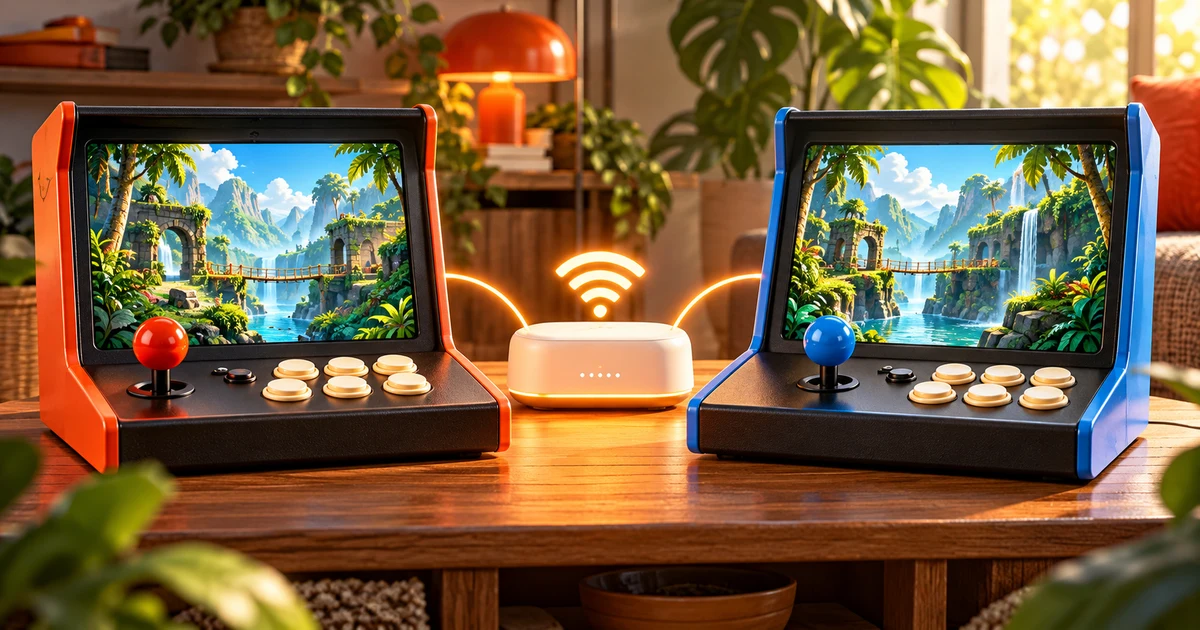
Connect both devices to the same Wi-Fi or hotspot, then open Metal Slug Arcade in each browser. This is local two-device play, so it won’t work over the internet, Bluetooth or between friends on different networks.
Some guest Wi-Fi networks stop devices from talking to each other. If you can’t pair even after following every step, try your home network or a hotspot that allows it. The site doesn’t ask for camera or microphone access, and all you need to swap are the game’s pairing codes.
Pick who hosts
On the first device, choose a title and select Host Two Players. Wait for the game to load and the invitation to appear. The host actually runs the game and streams the picture and sound to the second device, so keep that browser in the foreground while you play.
If one device is faster or has a steadier connection, try that one as host first. It’s a good starting point, though it doesn’t guarantee smooth play on every device. Let the first download finish before you troubleshoot multiplayer.
Swap the invite and the reply
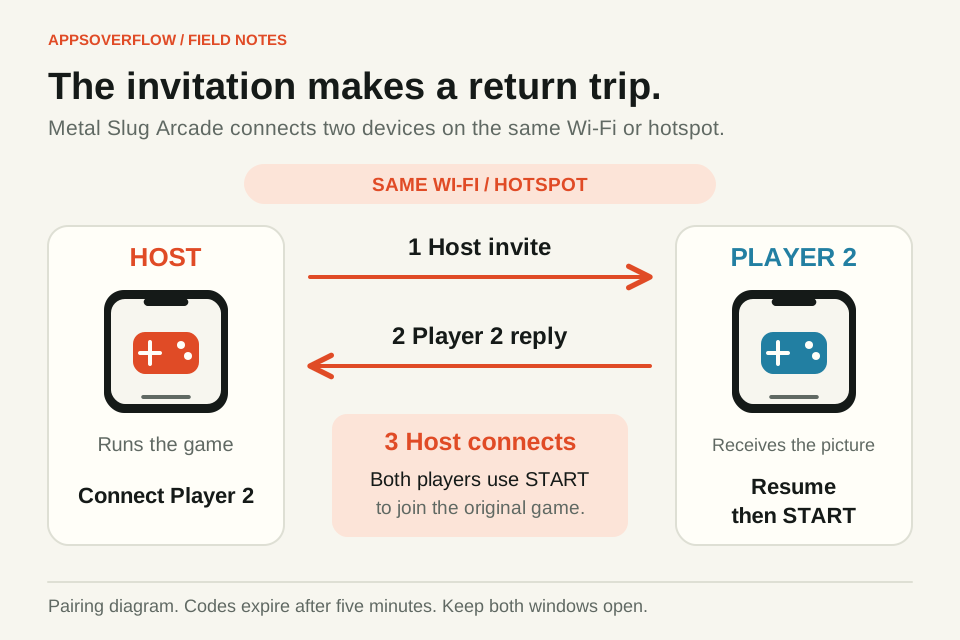
Copy the host’s invitation and send it to the other player. On the second device, choose Join as Player 2, paste the invitation into the host-invite field and choose Create Reply. Player 2 sends that reply back to the host, and keeps the joining screen open meanwhile.
On the host, paste the reply into the Player 2 reply field and choose Connect Player 2. The invitation on its own isn’t enough, since the reply has to come back too. Codes expire after five minutes, so if you’ve taken too long, make a fresh invitation and start the swap again.
Connect, then press START
Being connected and having two characters on screen are separate steps. Once the connection works, Player 2 chooses Resume, and then you both press START to join the game. On touch, the bottom A / FIRE button changes to START or CONTINUE when you need it.
If a game asks you to pick a character, confirm with FIRE. On a keyboard, Enter is Start and the Fire key confirms. If only one character shows up, check that Player 2 has resumed and pressed START before you blame the network, and keep an eye on the game’s own prompts too.
Set up comfortable controls
On a keyboard, move with the arrow keys or WASD. By default, J or Z fires, Space, X or L jumps and K or C throws a grenade. Open Options & Controls if you want a different layout. Each device sends only its own player’s actions, so you don’t need to share a keyboard.
On touch, you can change control size, button size and opacity, and drag the joystick and buttons wherever you like. Portrait and landscape layouts save separately. Keep FIRE and JUMP within easy reach, and try moving while firing before you start a long mission. If Full width stretches the picture, switch to Original proportions.
Keep it running, and fix problems
The guest sees the host’s live game and hears its audio, so switching away from the host, locking it or losing the connection can stop the session. Either of you can pause. To disconnect on purpose, open Pause and choose Two-Player Connection, so your partner isn’t left wondering what happened. The host’s sound setting controls the shared audio, and the guest can mute their own playback. If the devices are side by side and you hear an echo, mute one of them. Automatic continues is on by default, and each player can switch it off on their own device.
If pairing fails, check the network first, then how old the codes are and whether the reply reached the host. If an error mentions different device clocks, fix the clocks and make a new invite. If it says an update is needed, close both game windows and reopen them. A browser that can’t share the game view can’t host, so try a current Safari, Chrome, Firefox or Edge, or swap who hosts. The multiplayer help page has the current requirements.
Save and Load State only work in solo play. Starting a new solo game or changing players ends the connection, so agree before you leave a shared mission. AppsOverFlow makes this independent web player. Metal Slug and the original games belong to SNK and their respective rights holders, and the arcade guide covers the six-title collection and its controls without any official affiliation.
Quick answers
Can I play Metal Slug Arcade with a friend on another Wi-Fi network?
No. Two-device play needs the same Wi-Fi or hotspot, with devices allowed to talk to each other. There’s no public matchmaking or relay for separate networks.
Why does Player 2 need to send a reply code?
The host’s invite starts pairing, and Player 2’s reply finishes it. The host then pastes the reply and chooses Connect Player 2.
Does Player 2 need to download the game again?
No. The host runs the game, and Player 2 gets its video and audio and sends controls back.
Can we save a multiplayer game and continue later?
No. Save and Load State are only available in supported solo sessions.
Sources & further reading
Product details checked on 7 October 2026. Features and availability may change after publication.