Bring a backing track, or try the demo
Open Resonant Karaoke and load an instrumental backing file. There’s also an original Neon Meridian demo with sample words, so you can try the controls first. The demo has no lead vocal, so you can make up your own melody.
Karaoke takes compatible audio files up to 25 MB and ten minutes, depending on your browser. There’s no song catalogue and it can’t remove the singer from a finished track, so use words and music you have permission to perform. You’ll need an internet connection to load Resonant, but your imported audio stays on your device.
Add plain lyrics or timed LRC lines
Paste your words into the lyrics box, or import a .txt or .lrc file. With plain text you move through the lines yourself using Previous line and Next line as you sing, which is a good start if you haven’t timed anything.
LRC puts a timestamp at the start of each line, and the display follows the backing track, even when you skip around. As a quick example, write "[00:05.00] Let the first note find the room" and "[00:09.00] Let the next one carry through" on separate lines. Those times just show the format, so adjust them to your own backing.
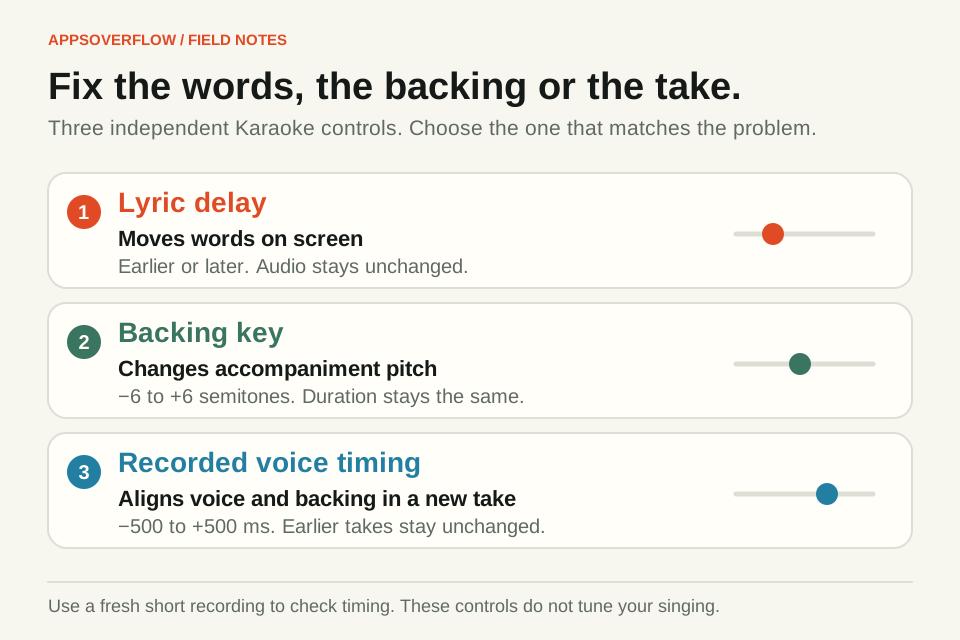
If every line shows up late or early by the same amount, use Lyric delay. A positive value shows the words later and a negative value shows them earlier. It only moves the words on screen and never changes your recorded voice. Lyric files can be up to 100 KB, 20,000 characters and 500 lines.
Find a comfortable key
Backing key moves the accompaniment anywhere from six semitones down to six up, and keeps the length and lyric timing the same. Try one or two semitones, wait for it to prepare, then play it again. It only changes the backing, so it won’t fix your pitch or give you a score. Choose Original key to go back to the source.
Set your key before you record, because you can’t change it during a take or while it’s finishing. Key changes work on mono or stereo tracks up to three minutes, so a longer backing will still play but only in its original key.
Turn on the mic and record one phrase
You can play the backing and sing along without giving microphone permission. To record your voice, choose Enable microphone and allow it when your browser asks. If it’s blocked, or another app is already using the mic, it won’t open.
Do a quick level check first. Sing or speak while watching the voice meter, and turn the backing down if it drowns you out. Headphone monitoring starts off. If you turn it on, wear headphones so the mic doesn’t pick up the speakers. Bluetooth and browser processing can add delay, so make a short recording before you commit to a full song.
Pick Record performance when you’re ready. You can add a four-beat count-in and set its BPM, which changes the clicks and leaves the backing speed alone. Sing one short phrase, press Stop and listen back to the mixed voice and backing. If it needs another go, change one thing, like the backing level, then try again. A take can run for about five minutes. The file format depends on your browser, and Safari can give you M4A.
Use the right timing control
Lyric delay moves the words on screen. Recorded voice timing changes how your voice lines up with the backing in a new recording. They’re different controls, so if the display looks late but the recording sounds right, only adjust the lyrics.
If your voice sounds late against the music, try a negative value. If it sounds early, go positive. It accepts minus 500 to plus 500 milliseconds and only affects new recordings, so do another short test after you change it.
There’s also an optional Measure microphone timing test that plays five clicks through your speakers and estimates the delay. You need to enable the microphone and apply the result yourself. Headphones, noise, Bluetooth and switching devices can throw the measurement off, so trust a short test recording over any single setting.
Keep your take
Edit this performance sends the mixed take to Tune Editor for trimming, fades and arranging. Your voice and the backing arrive as one mix, and you can’t pull them apart again. If the editor can’t take it, the original review and download are still there.
Resonant can save your recording and the Karaoke room on your device when the browser has space. The room remembers your backing, words and settings, but it won’t start playing or turn on your mic when you come back. Wait for the saved confirmation, and use Download performance for any take you care about. Keep a copy of your backing and lyrics too, since clearing browser data can remove local work.
Quick answers
Can I sing in Resonant without a microphone?
Yes. You can play the backing and follow the lyrics without microphone permission. Only enable the mic when you want to record your voice.
Can Resonant turn any song into an instrumental backing?
No. Karaoke can’t remove vocals or search a streaming catalogue. Load an instrumental you’re allowed to use, or try the original Neon Meridian demo.
Does Karaoke upload my voice or lyrics?
No. This workflow handles the backing, microphone audio and lyrics on your device. Download recordings you care about, because browser storage can be cleared.
Will changing the backing key change my recorded voice?
No. Backing key only changes the accompaniment, and your voice keeps its own path. The finished take mixes your voice with the key you chose.
Sources & further reading
Product details checked on 7 October 2026. Features and availability may change after publication.